
How to Install IPTV on Android & iOS — IPTV Smarters Pro Setup Guide
Whether you're on Android or iPhone, getting IPTV running takes less than 10 minutes. This guide walks you through installing IPTV Smarters Pro, adding your playlist, and streaming live TV channels — step by step, with real screenshots at every stage.
What You Need Before Starting
The setup is straightforward. Before diving into the steps, make sure you have these three things ready — it'll save you time later.
- An Android or iOS device — phone, tablet, or Android TV box
- IPTV Smarters Pro — free to download on Google Play or App Store
- Active IPTV subscription — your provider gives you either an M3U URL or Xtream Codes login (username + password + server URL)
- Stable internet connection — minimum 10 Mbps for HD, 25 Mbps for 4K
1 Download IPTV Smarters Pro
On your Android device, open the Google Play Store. In the search bar, type "IPTV Smarters Pro" and tap the official app by Smarters. Tap Install and wait for it to download — it's free and takes under a minute.
On your iPhone or iPad, open the App Store. Search for "IPTV Smarters Pro" and tap Get to install. You may need to confirm with Face ID or your Apple ID password. The app is free.
IPTV Smarters Pro is available free on both Google Play (Android) and the App Store (iOS)
2 Open the App & Accept Terms
Once installed, tap Open or find the IPTV Smarters Pro icon on your home screen. The first time you launch the app, you'll see a welcome screen with the Terms of Service.
Read through and tap "I Agree" to continue. This is a one-time step — the app won't ask again after the first launch.
Tap "I Agree" on the welcome screen to proceed into the app
3 Add Your IPTV Playlist
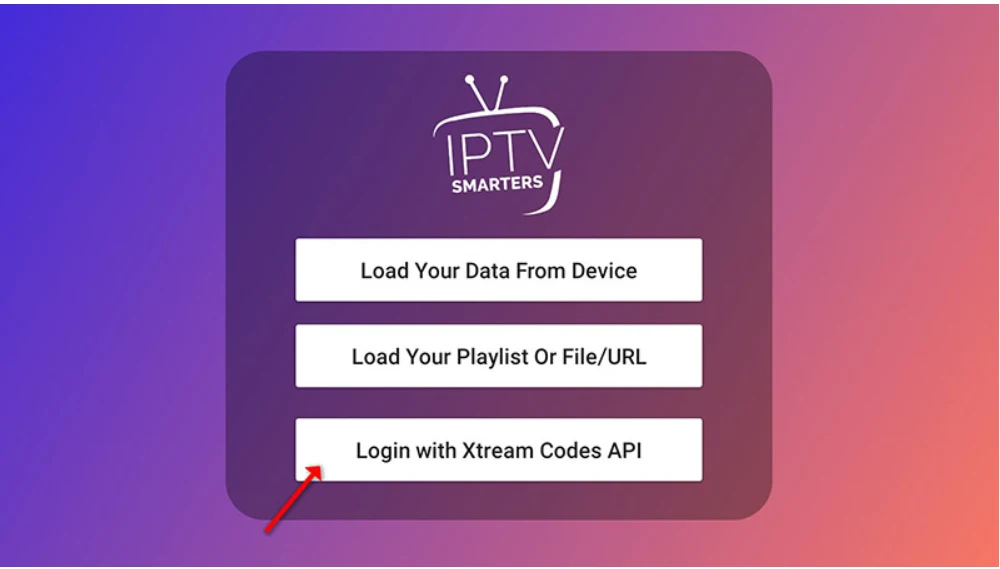
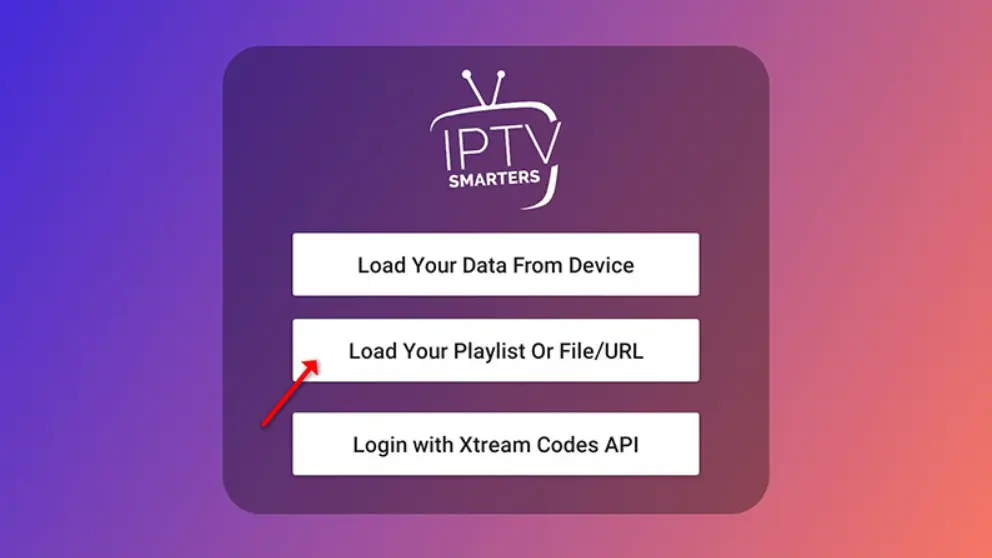
After agreeing to the terms, you'll land on the main screen. Tap "Add User" or the "+" button in the top corner. You'll see three options for adding your service:
- Load your playlist / file / URL — use this if your provider gave you an M3U URL
- Login with Xtream Codes API — use this if your provider gave you a username, password and server URL
- Add External Playlist — for locally stored M3U files
Most IPTV providers — including IPTV The Fox — use Xtream Codes or M3U URL. Check your welcome email or contact your provider if you're not sure which format they use.
Choose how you'll add your IPTV service — M3U URL or Xtream Codes are the most common
4 Enter Your IPTV Credentials
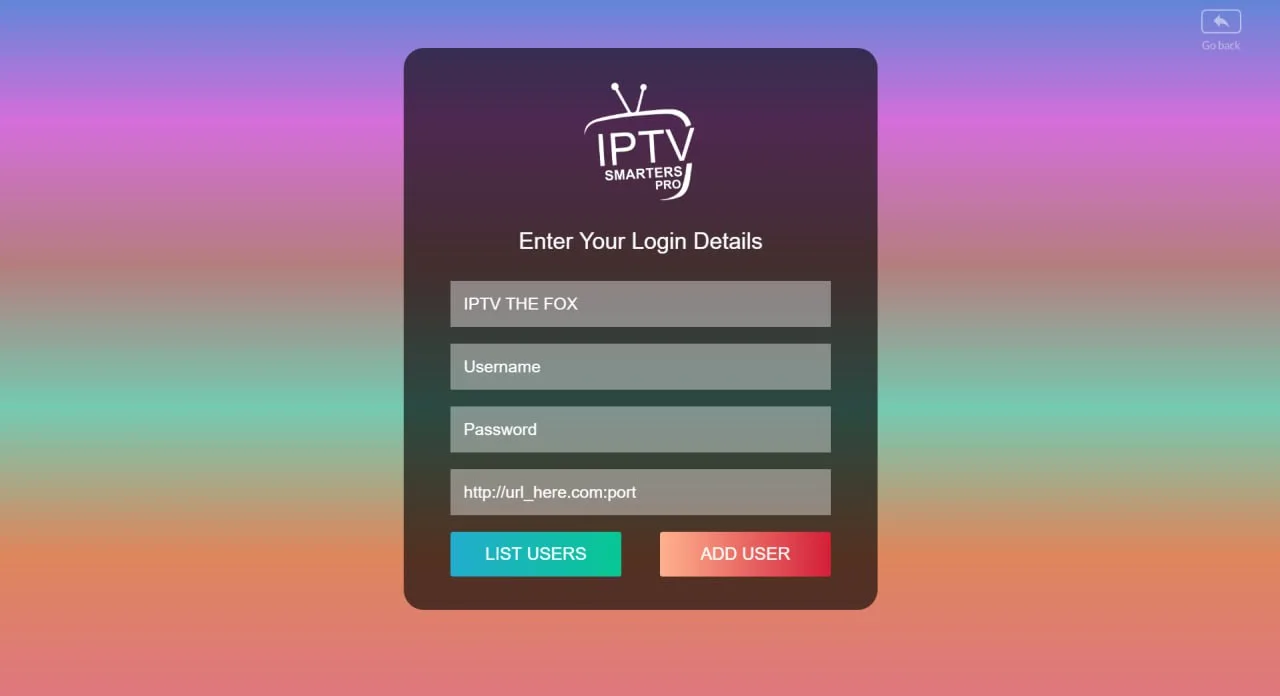
This step depends on which login method your provider uses. Fill in the fields exactly as provided — even a small typo in the server URL will prevent the app from loading your channels.
If using Xtream Codes:
- Username — provided in your welcome email
- Password — provided in your welcome email
- URL / Server — your provider's server address (e.g. http://yourserver.com:8080)
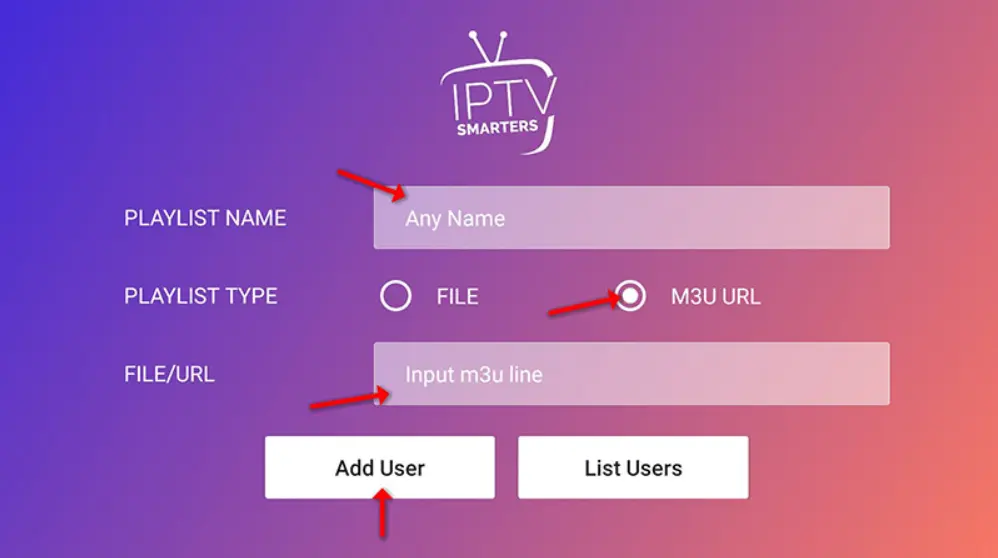
If using M3U URL:
- Playlist Name — any name you want (e.g. "IPTV The Fox")
- M3U URL — the full URL ending in .m3u or .m3u8
Enter your username, password and server URL exactly as provided by your IPTV service
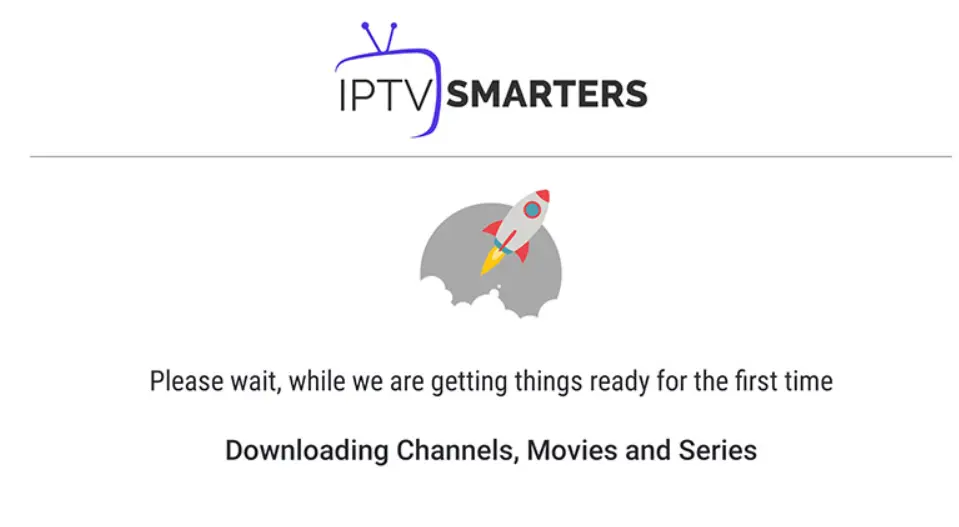
Tap "Add User" once you've filled everything in. The app will connect to the server and load your channel list — this usually takes 10–30 seconds depending on your connection speed.
The app connects to your server and loads your full channel list automatically
5 Browse & Choose Your Channels
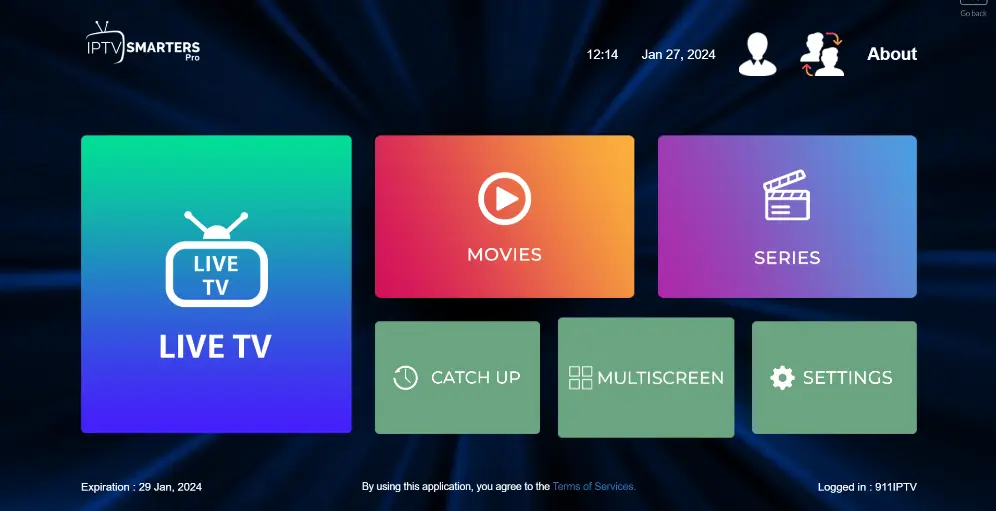
Once your playlist loads, you'll see the main dashboard with three sections: Live TV, Movies, and Series. Tap Live TV to see your channel categories.
Channels are usually organized by country, language, or genre — Sports, News, Entertainment, Kids, and more. Browse through the categories to find what you want to watch.
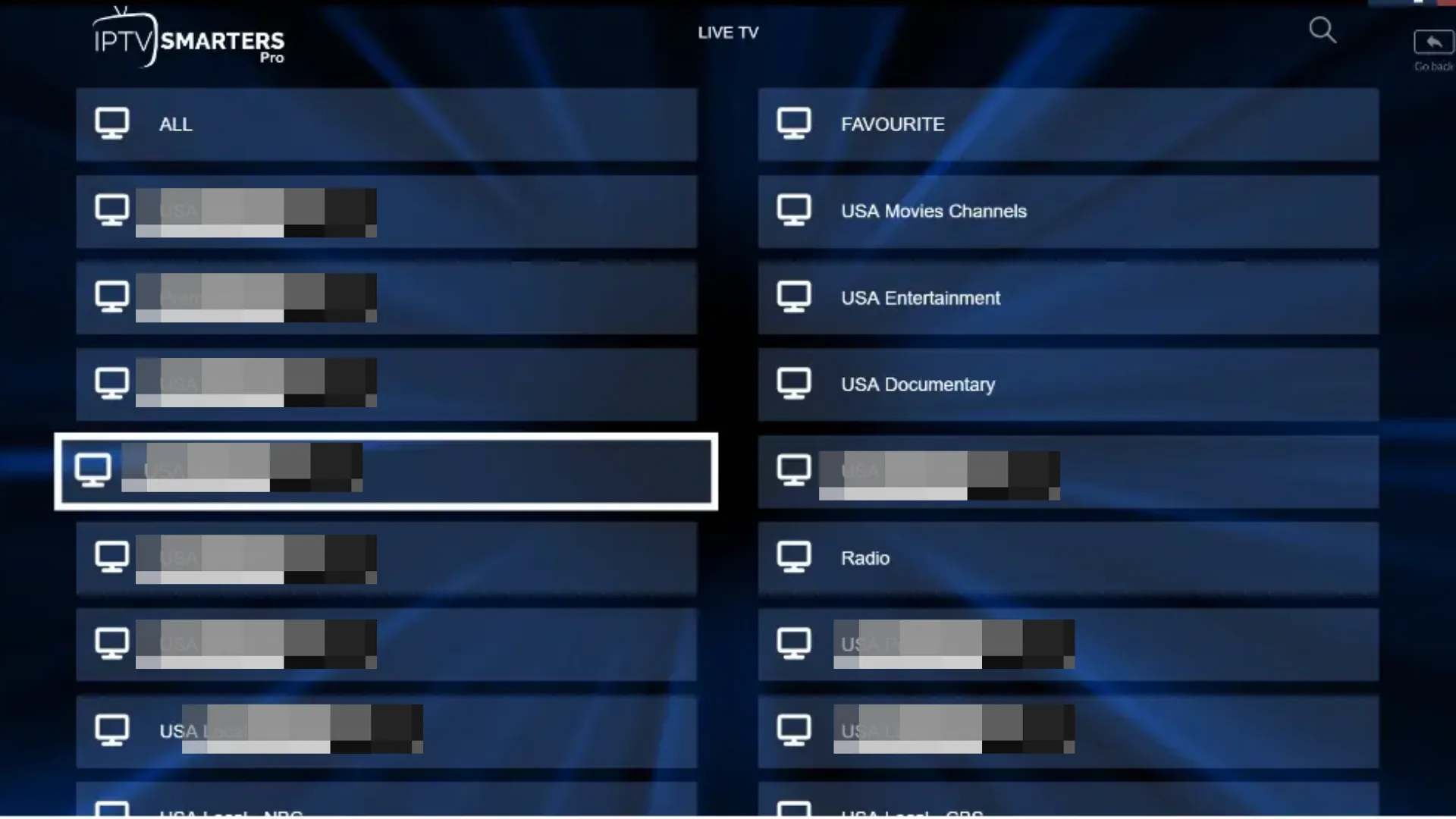
Your channels are organized by category — Sports, News, Entertainment, Movies and more
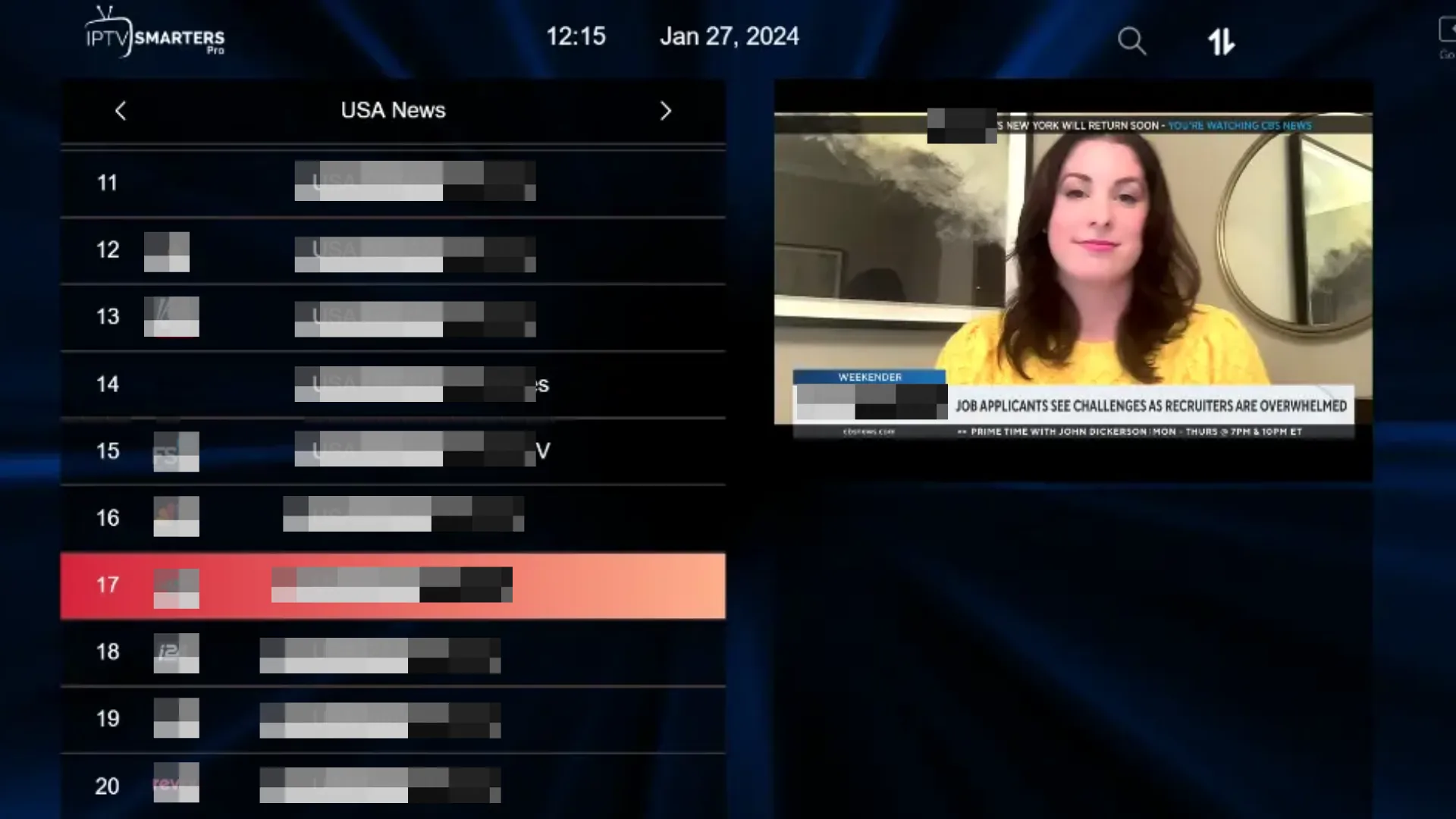
Tap any channel to start streaming instantly
6 Watch Live TV
Tap any channel and it starts playing immediately. IPTV Smarters Pro has a built-in player with full-screen mode, EPG (electronic program guide), and the ability to switch between streams if one isn't working.
Live TV playing in IPTV Smarters Pro — tap fullscreen for the best viewing experience
The built-in EPG shows what's on now and what's coming up next on each channel
Frequently Asked Questions

Ready to Watch? Get Your IPTV Subscription
IPTV The Fox works perfectly with IPTV Smarters Pro on Android and iOS. 10,000+ live channels, HD & 4K quality, instant activation, and 24/7 support.
🦊 Explore IPTV The Fox