IPTV THE FOX Support Center
Get help with installation, subscriptions, free trials, device setup, and reseller accounts. Our support team is available through the secure dashboard ticket system or email contact.

How to Create a Support Ticket
Follow these six steps to open a ticket, get a reply from the support team, and manage your account from the dashboard.
Log Into Your Account
Visit the IPTV THE FOX website and sign in to your account using your registered email address and password.
Account login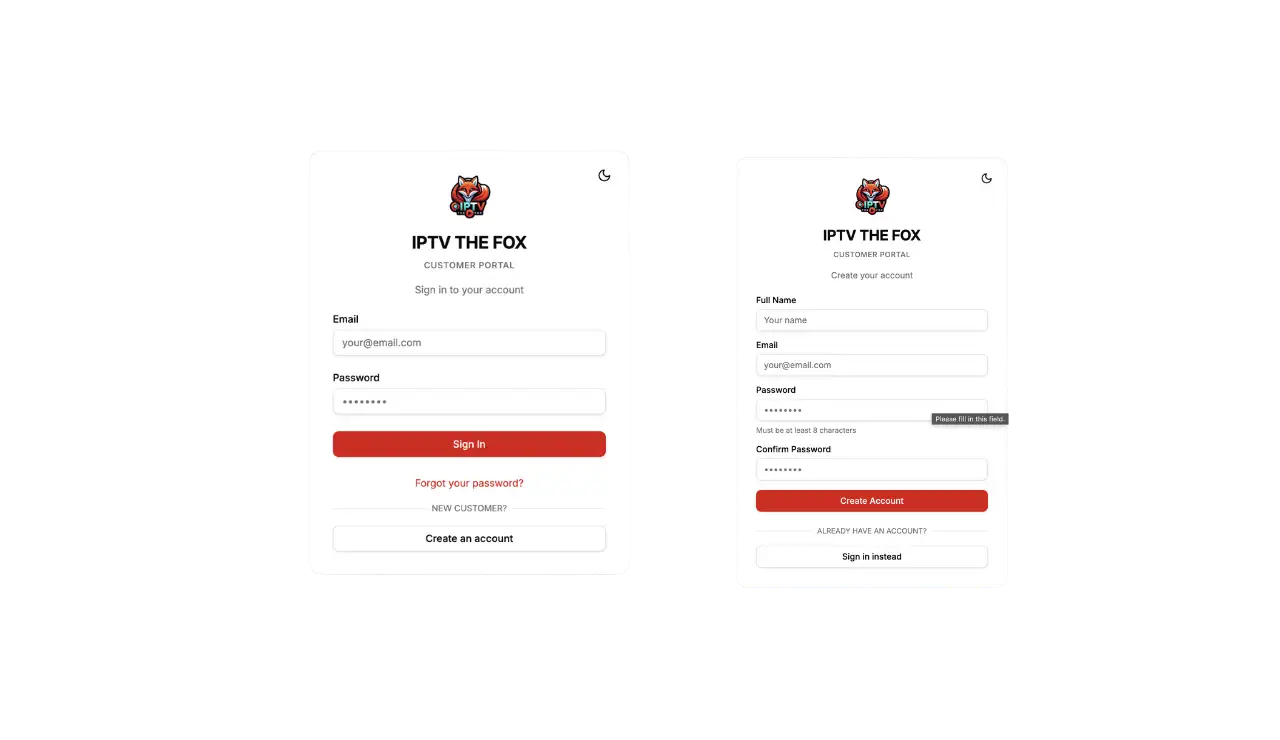
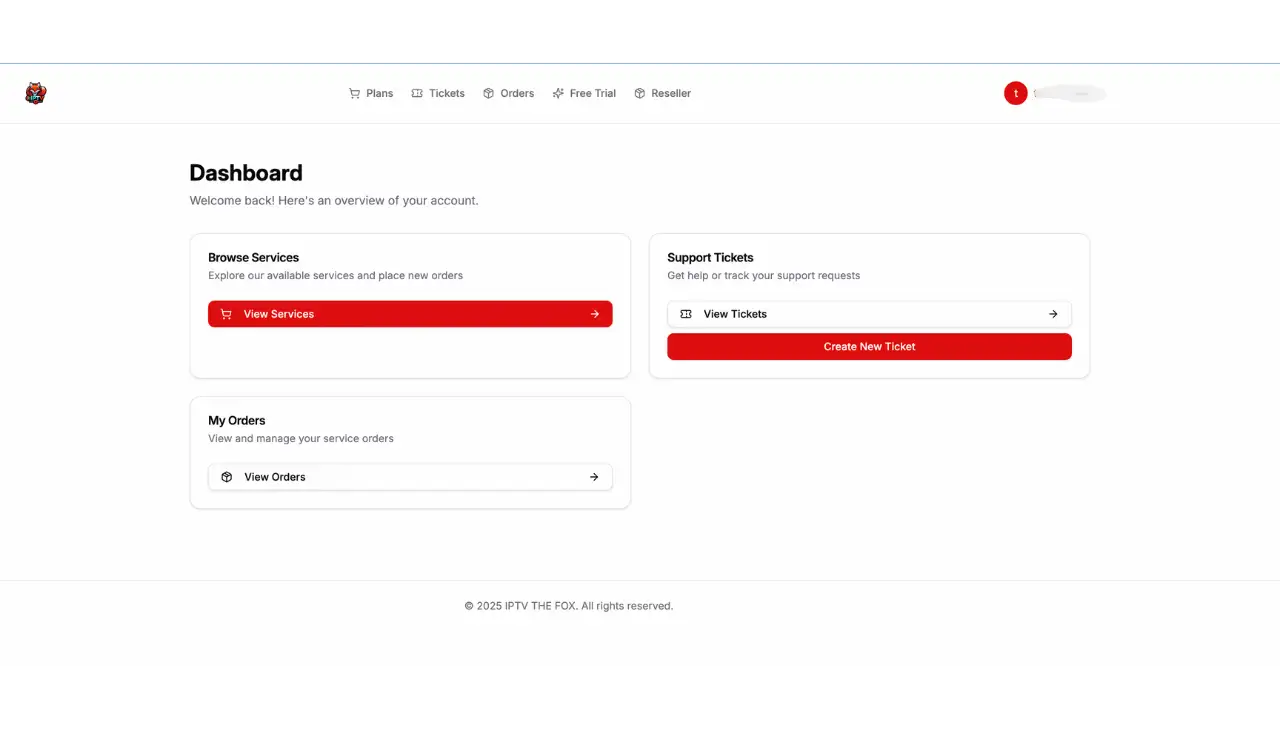
Open Your Dashboard
After logging in, navigate to your customer dashboard where you can see all your account details, services, and previous tickets.
Customer dashboard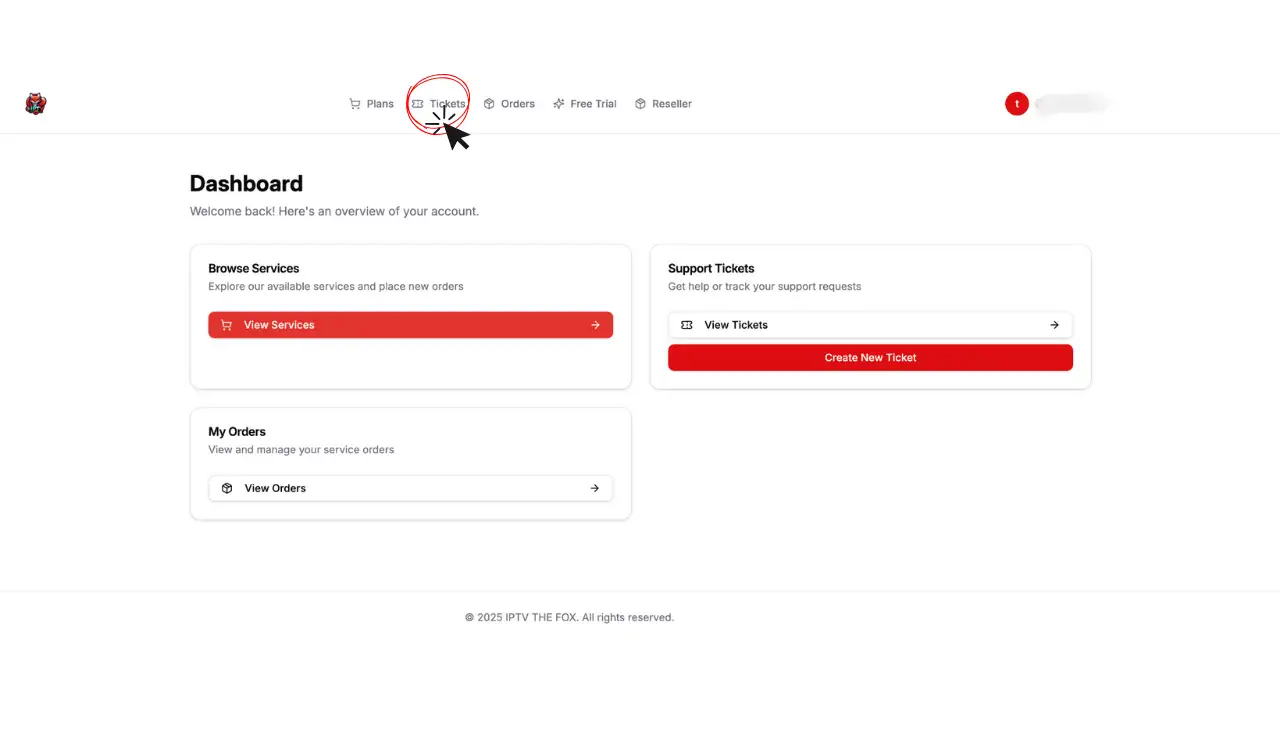
Go to the Tickets Section
Find the support tickets area inside your dashboard. This is where all your open and closed conversations with the team are stored.
Tickets section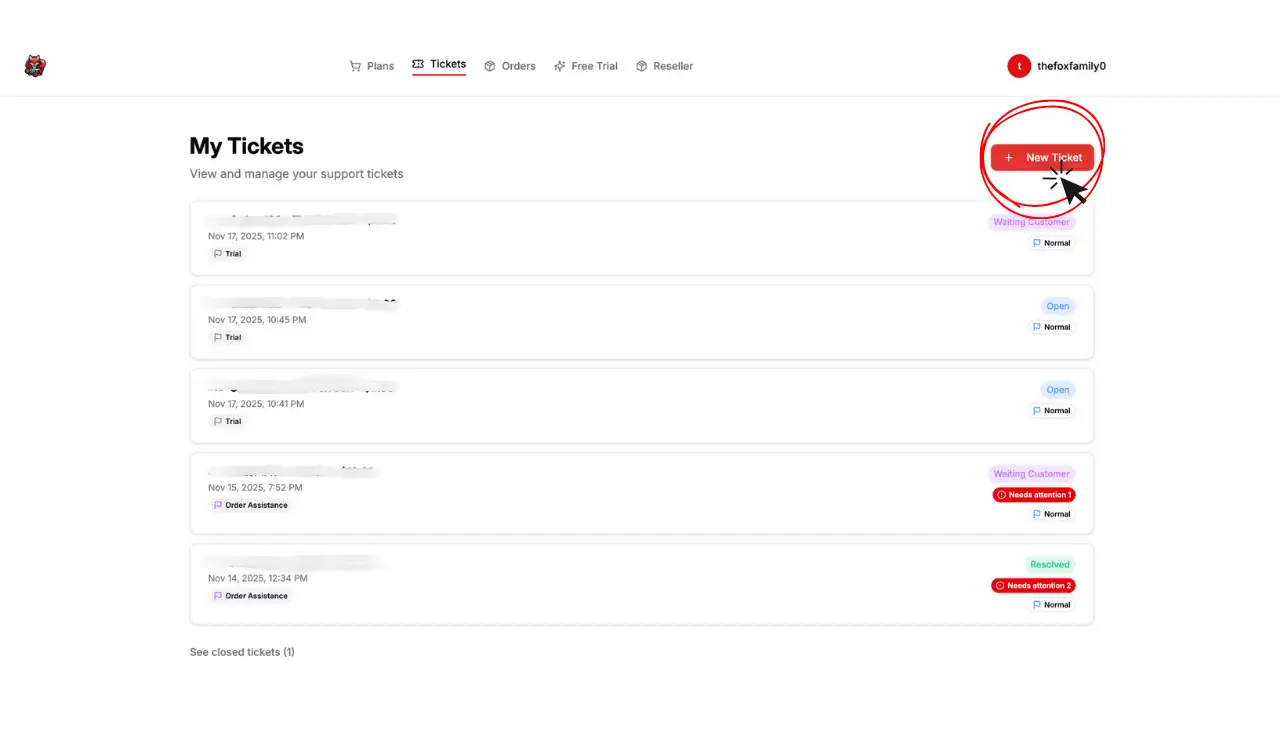
Create a New Ticket
Click to open a new ticket, select the relevant topic, and describe your issue. The more detail you provide, the faster the team can help.
New ticket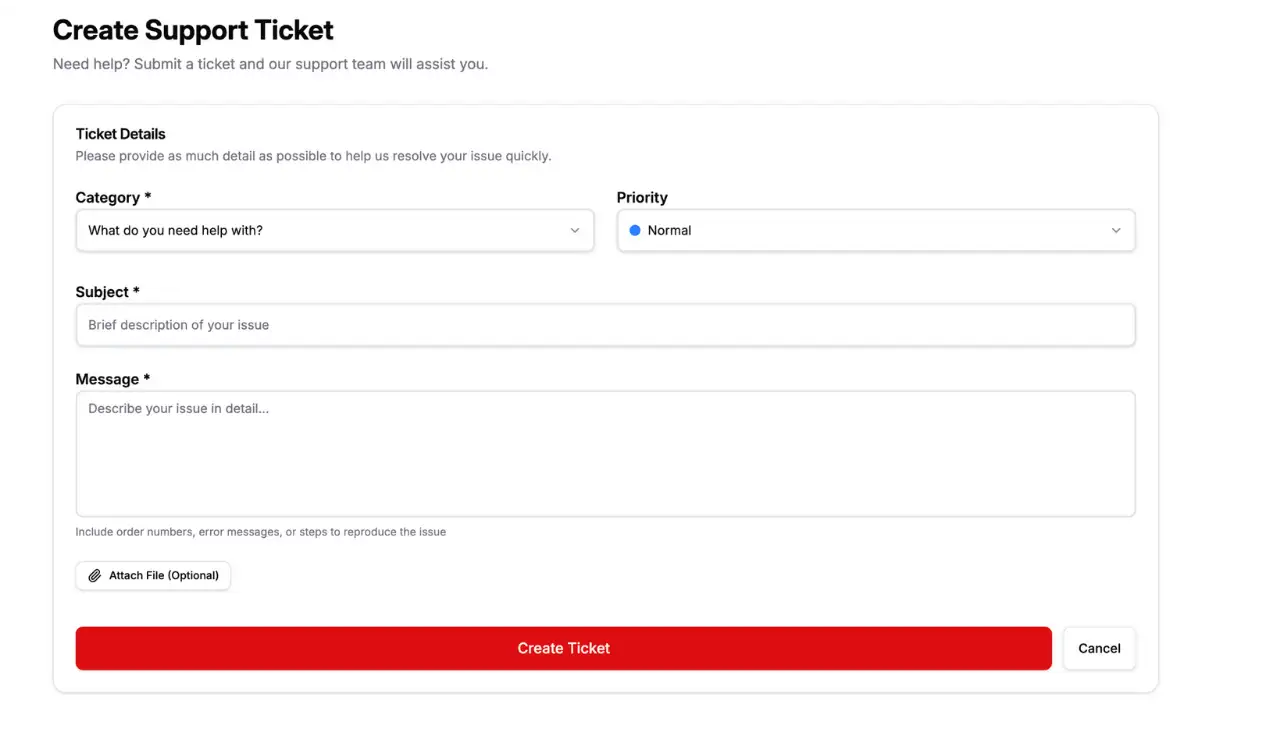
Receive Replies in Your Dashboard
The support team will reply directly inside your ticket. You can read responses, add more details, and continue the conversation securely.
Live replies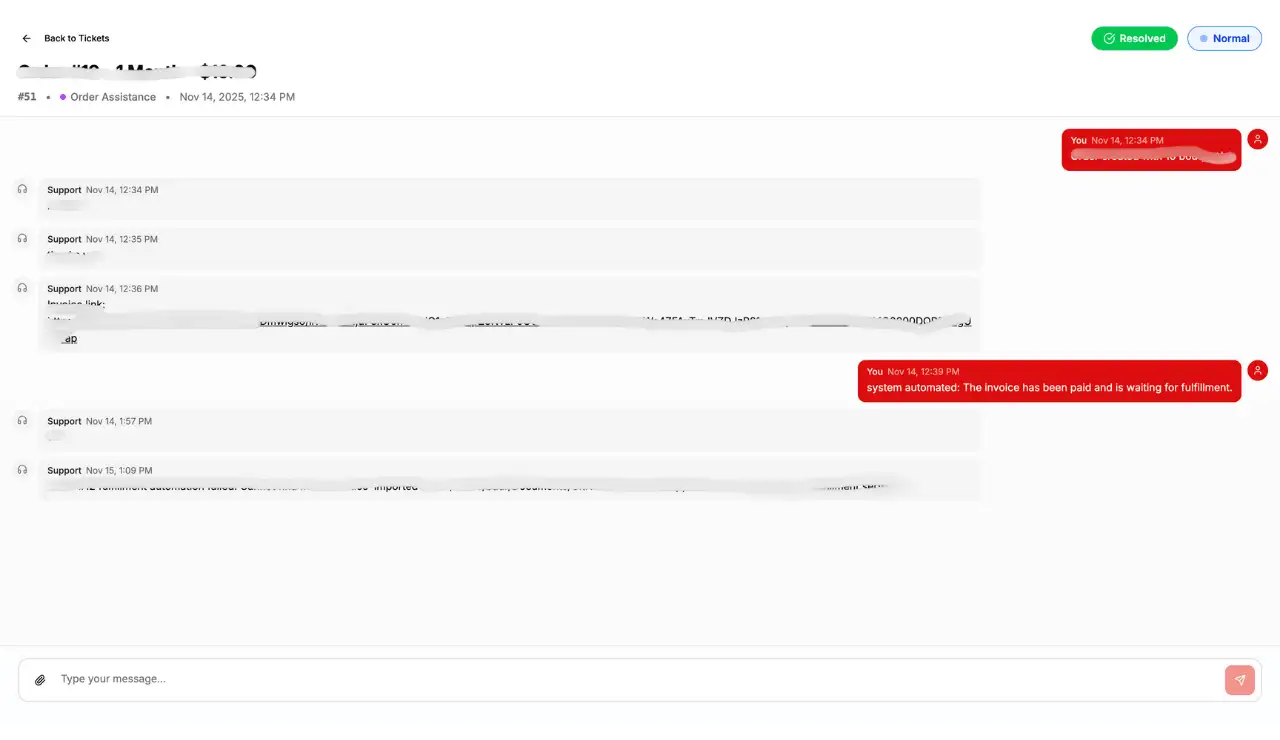
Manage Services & Subscriptions
From the same dashboard you can manage your active subscriptions, view order history, renew plans, and access all your account services in one place.
Account management